Posts

Showing posts with the label Windows 7

Dropbox error message: This file does not have a program associated with it for performing this action

Image
Actually this is not a Dropbox error message, rather Windows 7 autoplay problem. But I found out that it is related to Dropbox. There is an ongoing beta test with Dropbox right now and if you join the beta testing program you can have a chance to get 4.5 Gb more space. I tried it and it worked for some of my device but it didn't work for some. It worked for my point and shoot cameras but it didn't work with my old SLR (Canon Digital Rebel) and my smartphone (Nokia 5800 XM) connected via bluetooth. Then I tried the USB / flash drive technique but this error message appear every time I plug the device and choose to sync the pictures via Dropbox: This file does not have a program associated with it for performing this action. Please install a program or, if one is already installed, create an association in the Default Programs control panel. Click photo to enlarge I tried several things to to fix the problem to no avail. I tried different settings in Default Progra...

Japanese Keyboard Not Functioning Correctly After Installing Windows 7

Image
This is a common problem for laptops bought in Japan. Japanese laptop = Japanese OS . If you want to convert it to English operating system, you will face a very common problem after converting. Problem : After upgrading/converting your OS (Windows Vista to Windows 7), your Japanese laptop keyboard is not functioning correctly (different layout). The most common affected keys are the @ sign which is located along with number 2 in s tandard keyboard, (, :, +, Reason: Windows Vista and Windows 7 somehow identifies some Japanese keyboards as an English device. Solution: You will need to go to the Registry and tell Windows that you have the standard 106/109 Japanese keyboard instead of the English 101 version. Go to: HKEY_LOCAL_MACHINE\SYSTEM\CurrentControlSet\Services\i8042prt\Parameters and change the following entries to this value: LayerDriver JPN REG_SZ kbd106.dll OverrideKeyboardIdentifier REG_SZ PCAT_106KEY OverrideKeyboardSubtype DWORD 2 OverrideKeyboa...

How to: Import Firefox Portable Bookmarks and Passwords to Google Chrome in Windows 7

Note: While this tutorial is for Windows 7 , this may also apply in Windows Vista If you're using the regular Mozilla Firefox , importing your bookmarks , saved passwords and browsing history into Google Chrome is a breeze. Unfortunately for Firefox portable user, Google Chrome doesn't recognize it as an import source. Here's a step-by-step guide on how you can import Mozilla Firefox Portable into Google Chrome in your Windows 7 machine (and possibly Win Vista). You will need to copy your profile data first from portable firefox to regular firefox: 1) Close any instances of Mozilla Firefox (portable). 2) Download and install the regular version of Mozilla Firefox. Get it here . 3) Launch the newly installed Firefox and close it. 4) Open up explorer (e.g. My Computer or any other folder). Type the following into the address bar and press enter %appdata%\Mozilla\Firefox\Profiles 5) Inside you will see a folder: something like 7raursp4 ....

How to Install Windows 7 on Asus Eee PC 4G / 2G surf

Image
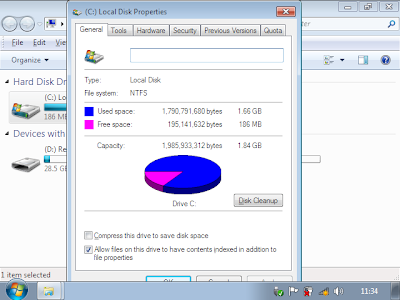
A typical Windows 7 install requires at least 16GB of free storage space, thus making it pretty much impossible to install on netbooks with Garfunkel storage. However, by using Virtual PC, Acronis true image and Vista PE, you can install Windows 7 OS on a device with as-low-as 2GB SSD. After installation, you will be left with mere 186MB of free space which may not enough for installing your apps. That said, it should be fun installing Windows 7 on a Celeron netbook released 2 years ago that came with with 512MB RAM and 2GB flash. Follow these steps: Step 1: Vlite your windows 7 install, you need to make it as small as possible in order to get it to fit on the 2GB hdd, (and even then its too big. More details later about this.) Alternatively use a shrunken version of 7 with your own product key. There are lots of guides on how to Vlite your Windows 7 install so I will not cover them here. Normally the Windows 7 installation process requires much more than 2GB hard ...

Everything You Need to Know About Windows 7

Image
The following article will answer the most important questions about Microsoft’s upcoming operating system Windows 7, basically everything you need to know about Windows 7 to be prepared for the upcoming release. We have decided to create the article in a form that resembles faq pages to make it easier to read. What’s the current stage of development? The release candidate will be released publicly in the coming week. It will be available for 1-2 months and expire in mid 2010 giving every user enough time to test if they have the desire to do so. When will Windows 7 be released? Microsoft has not revealed a release date for their new operating system yet. Most experts think that it will either be released in the fourth quarter of 2009 or at the latest in the first quarter of 2010. What are the hardware requirements? Microsoft has published hardware requirements for Windows 7 Beta. It is expected that the same requirements will be valid for Windows 7 Final. It is generally a...

How to Change Password on Windows XP / 7 without knowing the Original Password

Image
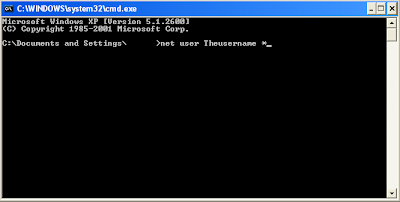
This is useful for many occasions such as if you forget the password to your primary account on your computer but still have access to another 0ne or if you simply want to prank your brother. This has been tested on both Windows XP and Windows 7. For this to work you must have access to another account because you have to use Command Prompt or CMD to change the password. Here is how to do it: Open Command Prompt (CMD) by going to Start -> Run -> cmd.exe Type in ‘net users’. This will show you a list of all the accounts on the computer. This is just to check and make sure you know the EXACT username of the account you want to change the password for. Next, you need to type in ‘net user (whatevertheusernameis)  Next you shall get a prompt asking you for the new password: Finally it shall ask you to repeat the new password, click enter and BAM, you have now changed the password without knowing the original one.

How to Configure your Firewall in Windows 7 (with pictures)

Image
A firewall is software or hardware that checks information coming from the Internet or a network, and then either blocks it or allows it to pass through to your computer, depending on your firewall settings. A firewall can help prevent hackers or malicious software from gaining access to your computer through a network or the Internet. A firewall can also help stop your computer from sending malicious software to other computers. You can customize most settings through left pane of the Firewall applet in Control Panel. 1. Turn on Windows Firewall. This setting is selected by default. When Windows Firewall is on, most programs are blocked from communicating through the firewall. If you want to allow a program to communicate through the firewall, you can add it to the list of allowed programs. For example, you might not be able to send photos in an instant message until you add the instant messaging program to the list of allowed programs. To add a program to the list, see Allow...

Windows 7 Optimization Tips

Image
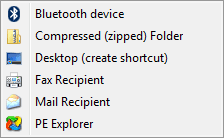
Hidden Send To Menu Personally I love right-clicking because it’s such a great way to get more options quickly. For example, the Send To option when you click on a folder in Windows Explorer can save you a lot of time. By default the Windows 7 Send To menu contains only a few locations and doesn’t give you that much choice: That doesn’t look too impressive. But there is a trick to it - press Shift before right-clicking and the Send To menu will expand: Now that looks a lot better, don’t you think? Switch Between Windows Faster The Minimize - Maximize window animation was first introduced in Windows Vista and made its way into Windows 7. While it does look cool, it also creates a delay and makes your PC slower. Disabling this effect is really easy. It will speed up your computer and make it more responsive. 1) Go to Start, type in SystemPropertiesPerformance and hit Enter 2) Go to the Visual Effects tab 3) Uncheck Animate windows when minimizing and maximizing 4) ...

Download DirectX 11 for Windows 7 or Vista

Image
You might know Microsoft has evolved a long way in improving their new OS Windows 7 by coming up with new builds and loads of changes embedded with it.Microsoft has also brought new changes in field of Direct X era to implement latest graphic card features for a wide vareity of Hi-end games and Digitalised features. After making DirectX 10 available for Windows Vista,now Microsoft has been working on getting DirectX 11 with Direct 3D 11 to existence.Earlier i had blogged that Win Xp users can make use of Warp 10 3d to make use of DirectX10 effects using a DirectX 9 based graphic card as Direct X 11 is not available for Xp Users. Windows 7/Direct 3D 11 Technical preview is a part of DirectX SDK and mainly contains a preview of Direct2D, DirectWrite, DXGI 1.1.Most important is that its available in DirectX End-user Runtimes.Currently Windows 7/Direct3D 11 (DirectX 11) is supported only on Windows 7 and Windows Vista. I just finished downloading it and its a 514.2 MB file. Download ...

How to make Windows Vista/Windows 7 bootable DVD

If you are a computer geek or involved in IT professional job, you usually make custom Windows installation disc to as per your organization requirement that includes unattended installation, slipstreaming updates, optimize Windows OS for best of your office use etc. Then here is simple and straight tutorial that helps you to make bootable DVD of Windows Vista/Windows 7 as Microsoft do. Requires: Windows Vista/Windows 7 installation source Windows Automated Installation Kit (WAIK) – for Windows Vista | Windows 7 Blank DVD and ISO/IMG burning software such as Nero, Raxio etc How to: 1. First of all, you are to copy whole installation source in a single folder says C:\DVD_Data (your OS image can be either customized or untouched) 2. Now run WAIK Command Prompt as Administrator and execute the following command to make bootable ISO image. cdimage.exe –l -t -m -u2 –b Where -l is used to set volume label of DVD -t is used to set the time of volume and its contents (Optional) -m is used...