Posts

Showing posts with the label printer help

Solution for Error: Enable bi-directional support | Canon Printer iP2770
Image
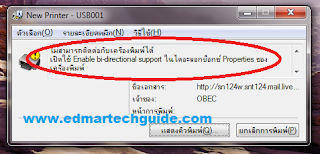
Screenshot of the error message: Click image to enlarge Overview: You try to print on a Canon network printer, it will start printing but it wouldn’t finish. An error will occur saying that you need to Enable bi-directional support on your printer. Solution 1: Enable bi-directional support on your printer properties. How to enable bi-directional support: On Windows 7 go to Devices and Printers. Right click on the printer and select Printer properties.      3. The printer properties window will open. Click on Ports tab at the top.      4. Put a check mark on Enable bidirectional support. Most of the time this will work. But in some cases the Enable bidirectional support option is greyed out. If this is the case, it is most likely a driver issue. This error occurs if you are using Windows 7 and then you connect to a Canon printer on a network that is connected to a Windows XP box. Solution 2: ...
How to Reset Canon MP760 - Waste Ink Tank Reset Procedure

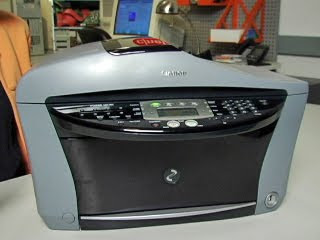
Problem with your Canon MP760 Waste Ink Tank? Just follow these steps on how to reset it. 1) Press the following keys in sequence: Copy-Menu-Scan-Copy-Scan. The display will say: SERVICE MODE #1 SSSW 2) Press the V key six times. The display will say: SERVICE MODE #7 PRINTER 3) Press OK. The display will say: #7 PRINTER #1 SSSW 4) Press the V key four times. The display will say: #7 PRINTER #5 INK ABS CAPA 5) Press OK. The display will say: SUCTION XX (where XX is how full the waste ink tank is as an integer percentage) 6) Change the XX to 0 by hitting the <> keys as many times as necessary (if you are closer to 99 than 0 it is better to hit the > key until it wraps around to 0). The display will say: SUCTION 0 7) Press OK. The display will momentarily say: SUCTION DATA ENTRY OK and then will quickly change to: #7 PRINTER #6 CDR ADJUST 8) Press the Stop/Reset button And the printer is back to normal.

How to Reset Canon MP780 - Waste Ink Tank Reset Procedure

1) Press the following keys in sequence: Copy-Menu-Scan-Copy-Scan. The display will say: SERVICE MODE #1 SSSW 2) Press the > key (also labeled +) six times. The display will say: SERVICE MODE #7 PRINTER 3) Press OK. The display will say: #7 PRINTER #1 SSSW 4) Press the > key (also labeled +) four times. The display will say: #7 PRINTER #5 INK ABS CAPA 5) Press OK. The display will say: SUCTION XX (where XX is how full the waste ink tank is as an integer percentage) 6) Change the XX to 0 by entering 0. The display will say: SUCTION 0 7) Press OK. The display will momentarily say: SUCTION DATA ENTRY OK and then will quickly change to: #7 PRINTER #6 CDR ADJUST 8) Press the Stop/Reset button And the printer is back to normal.

How To Repair Canon Pixma MP780 / MP760 / MP730 - Clogged Purge Unit

Image
1) Open the cover to get at the ink tanks and when the carriage comes to the center pull the power plug on the printer, then move the printhead more to the left. 2) Have a syringe ready or an eye dropper with some Windex-Original with Amomnia D. Use a flash light to see into the right side of the open area where you can reach the ink Caps. These are the small rectangular suction units where the printhead sets all the way to the right. When the carriage is Parked, these ink caps come up and cover the inkjet nozzles. There is one on the left for the black and one on the right for the color. 3) Add several drops of Windex to each cap until they appear flooded. The windex should begin to absorb through the Caps and down through the purge tubes to the waste ink pads. If it all goes in, add a couple of more drops. 4) Plug the power back in and turn the printer on. The carriage will move through a couple of cycles and you should hear the purge unit doing a couple o...

How to Reset Cartridge of Canon MP198 / MP190 Printer

Image
Problem: After refilling the cartridge of your Canon MP198 / MP190 printer, there is still an error that says your colored or black cartridge is still empty. Solution: This is a common problem when you refill the ink cartridge of you canon printer. You can bypass this problem by pressing the Stop/Reset button on bottom right hand side of the printer for about 5 seconds until the display reads 1 again. This will bypass the ink level sensor but your machine won't know how much ink left in the tank. It's not a problem though because it will let you print. Do this everytime you refill your ink cartridge.

Windows Vista Default Printer Problem

Image
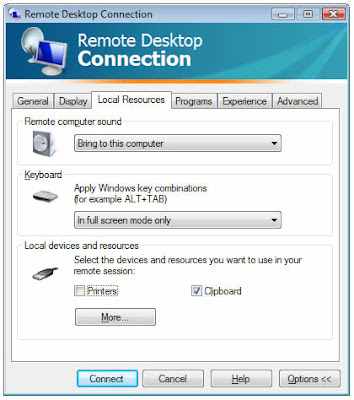
Recently we have had some users complaining about their default printer changing in Windows Vista. They would set their default printer, then everything would be fine for a while, but once in a while the default printer would change, or there would be no default printer set anymore. There was no apparent reason for this to be happening and we couldn’t really identify why the default printer was changing, but we now have a solution. It seems this particular problem was being caused by the remote desktop connection. If a user connects remotely to their Vista PC and has the local printers option set (under the Local Devices and Resources tab), this causes the default printer on the Vista PC to change. See the screenshot below. To view your remote desktop settings: Click Start -> All Programs -> Accessories -> Remote Desktop Connection Click on the Options button Click the Local Resources tab Uncheck printers So if your default Vista printer has been changing and you use remote de...

Waste Ink Tank Full Reset Canon MP360

Manual Reset procedure Waste Ink Tank for Canon MP390 and Canon MP360 Just Follow this step to reset waste ink tank full: 1) Start with printer on, press aadditional functions, Scan, Copy, Scan. Now you should be in service mode. 2) Select Test mode which is like the last available selection 3) Select #8 Printer Test, it will do something here like cleaning or something then it will come up with some other option this is where it gets a bit confusing cause now all it says is like 8-2 or 8-3 push the + or - button until it says 8-3 then hit the select button The menu will now say EEPROM Clear Select Ink count which is option (0) and press set Then press Stop/Reset Followed by the power button and then wait for it to restart.

How to Fix Error 27 on Canon Pixma MP145

Image
1. Press the ON/OFF button and the STOP/RESET button at the same time. 2. Press the ON/OFF button and then press the STOP/RESET button twice to enter maintenance mode (you should see a 0 value on your MP145 LED indicator). 3. Press the STOP/RESET button 4 times to reset the waste ink counter. 4. Turn off your printer. 5. Turn on your printer. 6. If unsuccessful go back to first step and try again until you get your desired result.

Print Spooler Won't Start

Q: My printer/fax in Control Panel is blank I have tried the service and maintenance start, and it states it is not available. When I try to reinstall the printer driver I get "Processing cannot be continued because the Print Spooler service has been stopped. Restart the computer to start the Print Spooler service and then try again." I have done this to no avail. When I try to start the service manually, I get "Could not start print spooler service. Error 1075 Dependency service does not exist or marked for deletion." Where do I go from here? A: These symptoms point to a problem that's common with certain Lexmark printers. First, let's check whether that's the case. Click Start, click Run, enter REGEDIT. In the Registry Editor navigate to the key HKEY_LOCAL_MACHINE\SYSTEM\CurrentControlSet\Services\Spooler. You do this just as you would navigate to a particular folder in Windows Explorer. In the right-hand pane (where the files would be in Windows Explo...

Inkjet Refilling Instructions - Downloadble PDF file

How to: Refill Inkjet Cartridges Yesterday, I uploaded general refilling instruction for laserjet toners . Now, I have another one for inkjet printer users out there. This PDF file contains general instructions on how to refill inkjet cartridges on your own. Almost all types of inkjet printers cartridge are included here. Download Here - Inkjet Refill Instructions Printer Cartridge instructions that are included in this file: Brother Printer Cartridges IN-700, LC11BK IN-710C, LC11CL LC03BC, LC03MY LC01BK, LC01C, LC01M, LC01Y LC02BK, LC02C, LC02M, LC02Y, LC21Bk, LC21C, LC21M, LC21Y, LC31C, LC31M, LC31Y, LC31BK LC04C, LC04M, LC04Y, LC04BK LC41C, LC41M, LC41Y, LC41BK LC25Bk, LC25C, LC25M, LC25Y LC51 Canon Printer Cartridges BCI-21 & 24 BC-20 & BC-23 BJI-201BK HC, BJI-201BK, BJI-201C, BJI-201M, BJI-201Y BC-01, BC-02, BC-05, BX-02, BX-03, BC-06 BCI-60, BCI-61, BCI-62 BCI-3eBk, BCI-3eC, BCI-3eM, BCI-3eY, BCI-3Bk, BCI-3C, BCI-3M, BCI-3Y, BCI-3PBk, BCI-3PC, BCI-3PM, BCI-5Bk, BCI-5C, B...

How To: Laser Printer Toner Refill Instructions

Refilling toners is not an easy job. If you are from the UK, I suggest visiting InkFactory.com to get your laser toners delivered to your doorsteps. UK Visitors Click Here If you really want to do it on your own then continue below. Here's a very valuable information (pdf file) for those of you who have Laser Printers and want to refill the toner/cartridge on their own. Download Link Included in this manual is the procedures / instructions for refilling these types of laserjet toners: Apple - M0089 Apple - M0180 Apple - M2045GA Apple - M2473A / G Apple - M6002 Brother – TN250 Brother – TN350 Brother – TN430/460/560 Brother – TN540/550/570/580 Brother – TN9500 Brother – TN9500 (high yield) Canon - A30, A15 Canon - E16/E20/E31/E40 Canon – EP52 Canon – EP52 (high yield) Canon – EPA Canon – EPB Canon – EPC/A20 Canon - EPE Canon – EPW/EP72 Canon – F100 Canon - FX1/EPL Canon - FX2/EPP Canon – FX3 Canon – FX4 Canon - FX5 Canon - L50 Canon – S35 Canon – X25 Canon – XS/EPS Canon -- FX8 D...

How To: Refill HP Laserjet 1010 / 1012 / 1015 Toner Cartridge

Here's a nice guide for those of you want to refill or remanufacture their own HP Laserjet 1010 toner / ink cartridge. I myself owns one and i just follow this guide whenever my cartridge needs a refill. This printer uses HP cartridge Part # Q2612A, so this guide is also applicable for HP Laserjet printer models 1010, 1012, 1015, 3015, 3020, 3030. The cartridge has no chip, contains 110 grams of toner and can yield 2,000 pages at 5% coverage. Download the detailed guide with pictures HERE

Reset Codes for Canon Printers - Canon Waste Ink Tank Reset Procedures

Canon Waste Ink Tank Reset Procedures Canon GENERIC "S" SERIES RESET CODE Waste Ink Counter Reset. 1. Turn off the printer. 2. Press and hold the RESUME button, then press and hold the POWER button. 3. Release the RESUME button, Next press and release the RESUME button two(2) more times in succession. Note: you are still holding the POWER button). The printer's carriage will "reset" or move momentarily. If the above was properly performed the printer will enter the Service Mode". 4. Press the RESUME button 4 times, this will select the clear waste ink counter function. The lamp will alternate (change) color with each key press. 1. Service/Factory test printout, including ink sensor check. 2. EEPROM - Info printout. 3. EEPROM - Initialization. 4. Reset the Waste ink counter. 5. Printer model setting. (More selections beyond this point - However it is best leave them unaltered - You have been warned!) After selecting the desi...

Parts inside your printer are at the end of their service life

A Service Error where you get a message telling you that "Parts inside your printer at the end of their service life, contact your dealer for replacement", or "Parts inside your printer require maintenance or replacement, call your service company", is normally a Maintenance Request Error. The maintenance request error is actually a Waste Ink Ink Pad Error and usually your remedy is: 1. Replace the Waste Ink Pad/Pads with a new one/ones (many people ignore this one, and they just follow #2) 2) Reset the Internal Waste Ink Pad Counter by using this utility Affected Printers: Epson Stylus Сolor 400 Epson Stylus Сolor 440 Epson Stylus Color 480 LPT Epson Stylus Color 480SXU / 580 Epson Stylus Сolor 600 Epson Stylus Сolor 640 Epson Stylus Сolor 660 Epson Stylus Сolor 670 Epson Stylus Color 680 / 777 Epson Stylus Сolor 740 Epson Stylus Сolor 760 Epson Stylus Сolor 800 / 850 Epson Stylus Сolor 860 Epson Stylus Color 880 Epson Stylus Color 900 / EM-900C Epson Stylus Color ...